Klipsy tutorials: Projects, Templates, Studio, Automations, Publishing, Analytics
- klipsy tutorial
- klipsy features
- how to use klipsy
- automation canvas
- faceless video studio
- template analytics
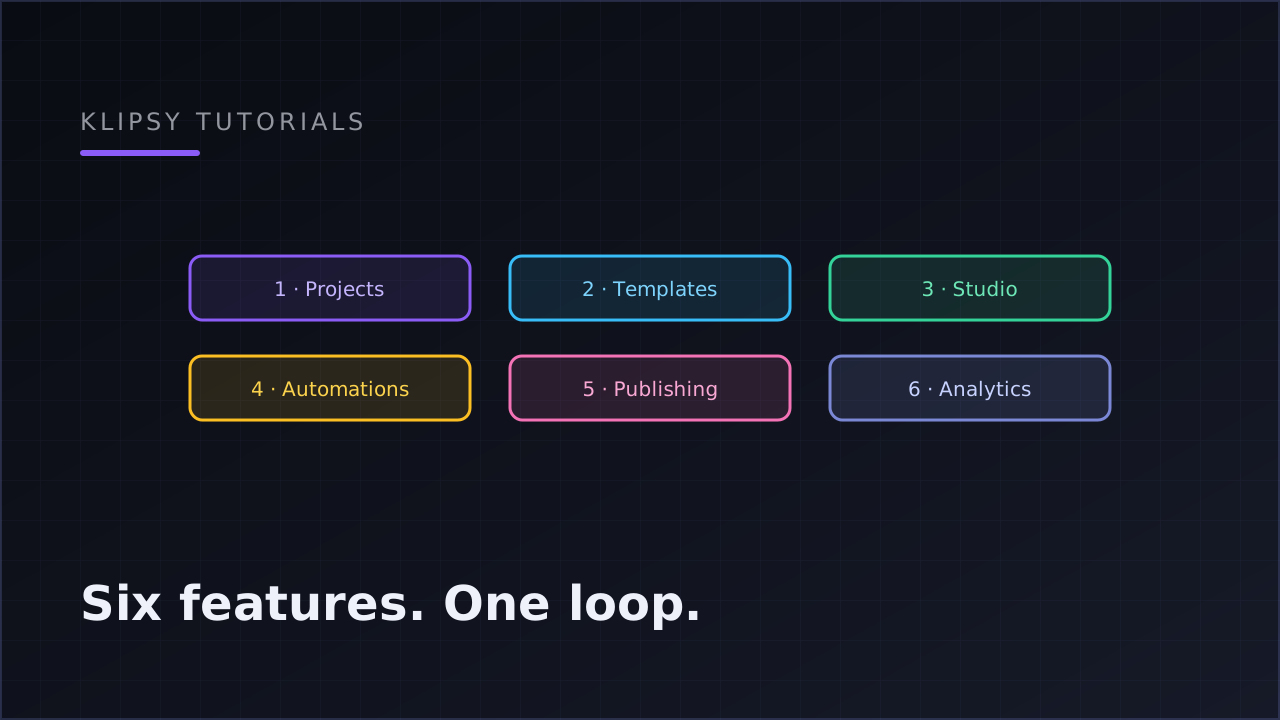
Klipsy runs the full content loop — create, publish, measure — through six features you meet in order: a Project to hold everything, Templates that define your content recipes, the Studio that renders faceless videos, Automations that put production on a schedule, native Publishing to your connected accounts, and Analytics that tell you which recipe to double down on.
This is the walkthrough of each, in the sequence you'll actually use them. If you want the strategy behind the sequence first, start with the create → publish → measure loop and come back.
Projects: the container everything lives in
A project is one brand or channel operation: its templates, automations, connected social accounts, generated posts and analytics all scope to it. Running a motivation brand and a finance brand? Two projects, two clean sets of numbers, zero cross-contamination.
Inside a project you'll find the pieces this tutorial covers — plus the social connections screen, where you link accounts via each platform's official OAuth flow. Connections are scoped to publishing and reading analytics, tokens are encrypted and auto-refreshed, and disconnecting revokes access. Klipsy never sees a password. (Why that architecture is what keeps automated accounts safe: is automating TikTok or YouTube against the rules?)
Do first: create the project, connect at least one account, and note that everything else below assumes both exist.
Templates: your content recipes
A template is a reusable definition of a piece of content — the unit that schedulers run and analytics attribute performance to. Klipsy templates come in several types, and the type decides what the template configures:
- Video / Story Video — the Studio pipeline types. You set the script prompt (how the AI should write each episode), art style (AI imagery, stock footage, or an ambient loop), voice, caption style (word-by-word "word pop" or none), and default duration (30 or 60 seconds).
- Image + Text / Text / Image — content-post types. Feed them brand context — up to two context images and a document — and toggle whether the AI generates the text, the image, or both per run; or supply your own copy and image to publish as-is.
Every template carries a name, description and cover image. Starter templates ship as read-only examples across common faceless niches — clone their ideas into your own rather than editing them.
Outside the template gallery, the Content Calendar is its own section: you write your own post (text plus an optional image or video) for any day up to 12 months ahead, choose the accounts and a time once, and each day publishes itself on its day — no AI involved. Past days show what went out.
Do first: build one strict template in your niche. The script prompt is where the quality lives — specify tone, structure and pacing rules once, and every future episode inherits them. (Why the template layer is what makes the whole chain work: content automation workflows.)
Studio: where faceless videos get made
The Studio is the render pipeline behind video templates. Give it a topic and the template's recipe, and it runs the stages in sequence: scene-by-scene script → AI voiceover with word-level timing → visuals per the art style → animated word-by-word captions synced to the voice → a vertical 1080×1920 MP4 with music.
Three Studio behaviors worth knowing before your first render:
- Live per-stage progress. You watch each stage complete rather than staring at a spinner.
- Resume from the failed stage. If captions fail, the retry starts at captions — not back at the script. At daily cadence this is a cost feature, not a convenience.
- Per-stage cost estimate. Every video shows what it costs to produce, stage by stage, before and during generation. Your cost per video is the number all scaling math builds on — the full arithmetic is in what AI faceless content actually costs.
For fully generative clips, Klipsy also drives external video models — Kling and Seedance — from a prompt with optional start/end frames, quality and aspect-ratio settings. Treat those as a class above assembled videos in cost: right for specific shots, expensive as a daily default.
Automations: the canvas that runs your cadence
An automation is a visual node graph: Template → Scheduler → Accounts, wired left to right on a canvas. Read it as a sentence — "this recipe, on this schedule, to these accounts."
The scheduler node sets the cadence — daily, every N days, or weekly — at a set time in a timezone you choose (pick your audience's, not yours). One graph can hold several scheduler blocks with independent cadences. Two guardrails run underneath: concurrency is capped per project, so a misconfiguration delays renders instead of stacking ten at once, and publishing is idempotent — a retried run can never double-post.
The scheduler is also where review mode lives: with it on, each run's finished post parks as a draft awaiting your approval instead of publishing. It's the right default for a new template's first week or two — approve manually until the output is reliably on-brand, then relax it.
Do first: wire your template to a daily scheduler in review mode, connected to one account. Expand only after the drafts look right.
Publishing: native, parallel, honest about failure
When a run completes (or you approve a draft), Klipsy publishes natively through each platform's official API — TikTok direct post, YouTube Shorts upload, Instagram Reels/image/Stories, and text or image posts to X. No watermarks, no third-party reposting; the AI writes a platform-appropriate caption or title per target so TikTok text isn't recycled as a YouTube title.
Each platform target is independent: one video to three platforms is three parallel attempts, and each succeeds or fails on its own with a readable reason — "Reconnect TikTok" tells you exactly what to do. The post rolls up to completed, partially failed or failed, and failed targets retry individually from the dashboard without touching the successes.
That fan-out — and why native beats every reposting shortcut — is covered in depth in post one video to every platform.
Analytics: the loop closes here
From the moment a post publishes, Klipsy collects its views, likes, comments and shares from each platform's official API, hourly, attached to that exact post. The reading surfaces:
- Per-post time series — how a post accumulated its numbers over its first hours and days.
- Comparisons — up to five posts side by side over 30 days.
- Project dashboard — lifetime totals, the 30-day trend per platform, your top three posts, and the headline: best-performing template.
That last number is the entire point of the system. Because every post traces to the template that produced it, the dashboard can answer "which recipe is winning?" with real sample size — and that answer feeds directly back into what your automations should produce next week. Read it weekly, make one decision (scale, revise, or kill a template), and let the loop compound.
The whole tour as a checklist
| Step | Feature | You do | Klipsy does |
|---|---|---|---|
| 1 | Project | Create it, connect accounts via OAuth | Scopes, encrypts and refreshes tokens |
| 2 | Template | Define the recipe, tune the script prompt | Locks the identity every episode inherits |
| 3 | Studio | Approve the first renders | Script → voice → visuals → captions → MP4, with costs shown |
| 4 | Automation | Wire template → scheduler → accounts, review mode on | Generates on cadence, capped and idempotent |
| 5 | Publishing | Approve drafts (while trust builds) | Native parallel uploads, per-target status, retries |
| 6 | Analytics | Read the template signal weekly | Hourly collection, attribution, dashboard |
Six steps, one afternoon of setup, and the loop is running.
FAQ
How do I start with Klipsy from zero?
Create a project, connect one social account via OAuth, build one template with a carefully written script prompt, and wire it to a daily scheduler in review mode. Approve drafts for a week or two, then let it run. Everything else — more platforms, more templates, tighter cadence — is expansion after the loop works.
Do I need video editing skills?
No. The Studio assembles each video from the template's recipe: AI script, AI voiceover, visuals, synced captions and music, rendered to a vertical MP4. Your editorial input is the script prompt and the approve/reject decision in review mode.
Can I post my own content instead of AI-generated content?
Yes, two ways: content templates accept your own text and image to publish as-is, and the Content Calendar lets you write each day's post yourself — it publishes each day on its own, at your time, to your accounts.
Which platforms does Klipsy publish to?
TikTok, YouTube Shorts and Instagram (Reels, images and Stories) for video and visual content, plus text and image posts to X. All natively through official APIs, in parallel, with per-platform captions written automatically.
What does Klipsy track after publishing?
Views, likes, comments and shares per post, collected hourly from each platform's official API — rolled up into per-post curves, five-post comparisons, per-platform 30-day trends and the best-performing-template signal on the project dashboard. On a paid plan you can even query all of it in plain language from an AI assistant — see running your channels from an AI assistant with Klipsy's MCP server.